Introduction
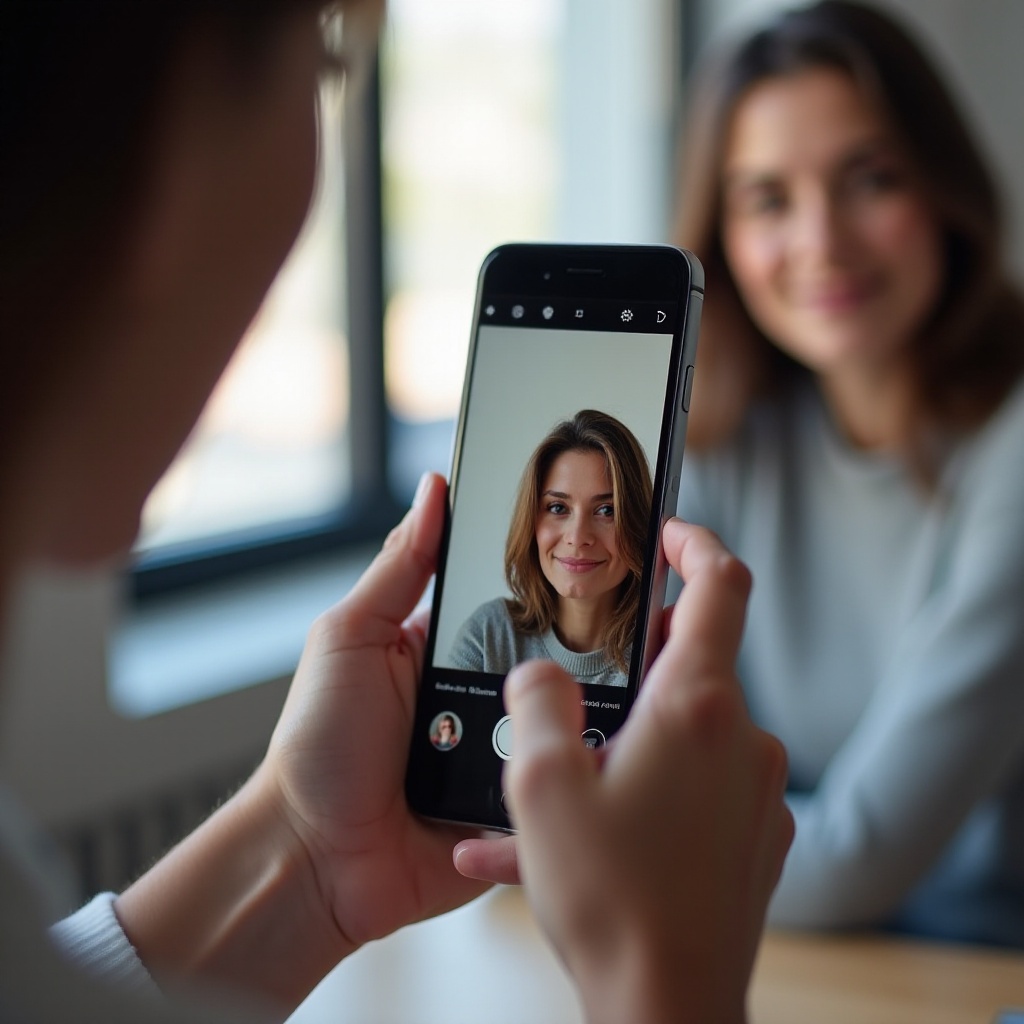
Capturing those special moments with your iPhone camera is usually quick and intuitive. However, there are times when your photos might need that extra creative touch to truly stand out. That’s where Portrait Mode comes into play, offering a way to create images with a professional depth effect. By highlighting subjects and blurring backgrounds artistically, even ordinary pictures can become extraordinary. Transitioning your existing photos to this mode can enrich them aesthetically, turning your photo gallery into a showcase of stunning visuals. The journey to mastering this is simpler than you might think. Dive into our guide and unleash your inner photographer using tools available right on your iPhone.
Understanding Portrait Mode on iPhone
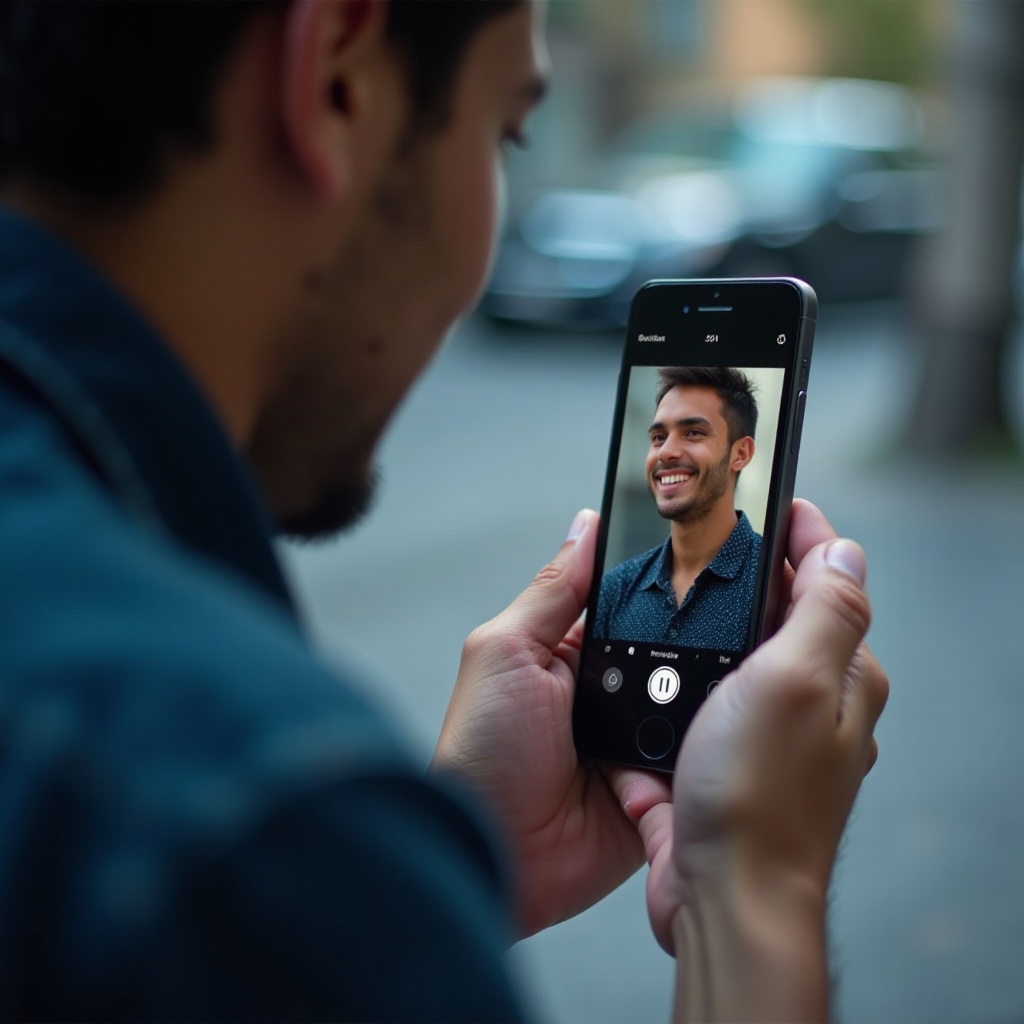
Originally introduced in dual-camera setups, the Portrait Mode feature allows you to capture photos with an impressive depth-of-field effect, where your subject is crisply focused against a soft, artistic blur in the background. Available from the iPhone 7 Plus onwards, this feature cleverly employs depth information to construct beautiful, attention-grabbing scenes reminiscent of a professional photo shoot. Perspicaciously understanding how Portrait Mode functions enables you to capitalize on its full potential. It lays the groundwork for transforming the photos in your collection into mesmerizing works of art.
Step-by-Step Guide to Convert Photos to Portrait Mode
Using the Built-in Photos App
- Launch the Photos app and locate the image you aim to convert.
- Click ‘Edit’ in the top right corner of your screen.
- If the picture was already taken in Portrait Mode, adjust the depth using the ‘f’ function.
- Drag the slider to your preferred depth level, then click ‘Done’ to save.
Recommended Third-Party Apps
For photos not originally shot in Portrait Mode, a selection of third-party apps can grant you more control over your edit options. Apps like Focus and PortraitCam are especially noteworthy for their advanced capabilities.
- Focus: This app is coveted for its nuanced bokeh effects.
- PortraitCam: Offers superb depth and lighting adjustment features for dramatic enhancements.
Tips for Choosing the Right Photos
Not every image effortlessly adapts to Portrait Mode. Here are some selection tips:
- Aim for photos where the subject is well-defined against the backdrop.
- Ensure ample lighting to facilitate clear effects.
- Select solo or duo shots instead of crowded scenes for superior results.
Editing and Enhancing Portrait Mode Photos
After converting your pictures, further enhancements can substantially elevate their quality.
Using Depth Control
The depth control functionality allows you to customize the intensity of the blur effect. Altering the aperture f-stop can considerably modify the background clarity, placing more focus on the subject.
Adjusting Lighting and Effects
Follow these steps to refine the lighting:
- Tap on ‘Lighting’ within the editing menu to explore various modes.
- Use sliders for options like Studio Light or Contour Light to accentuate details.
Enhancing Details with Additional Tools
Make use of iOS’s inherent editing tools or third-party apps like Snapseed for detailed adjustments in color, sharpness, and noise reduction.
Troubleshooting Common Issues
Even top-tier cameras occasionally face issues requiring extra attention.
Addressing Depth Effect Problems
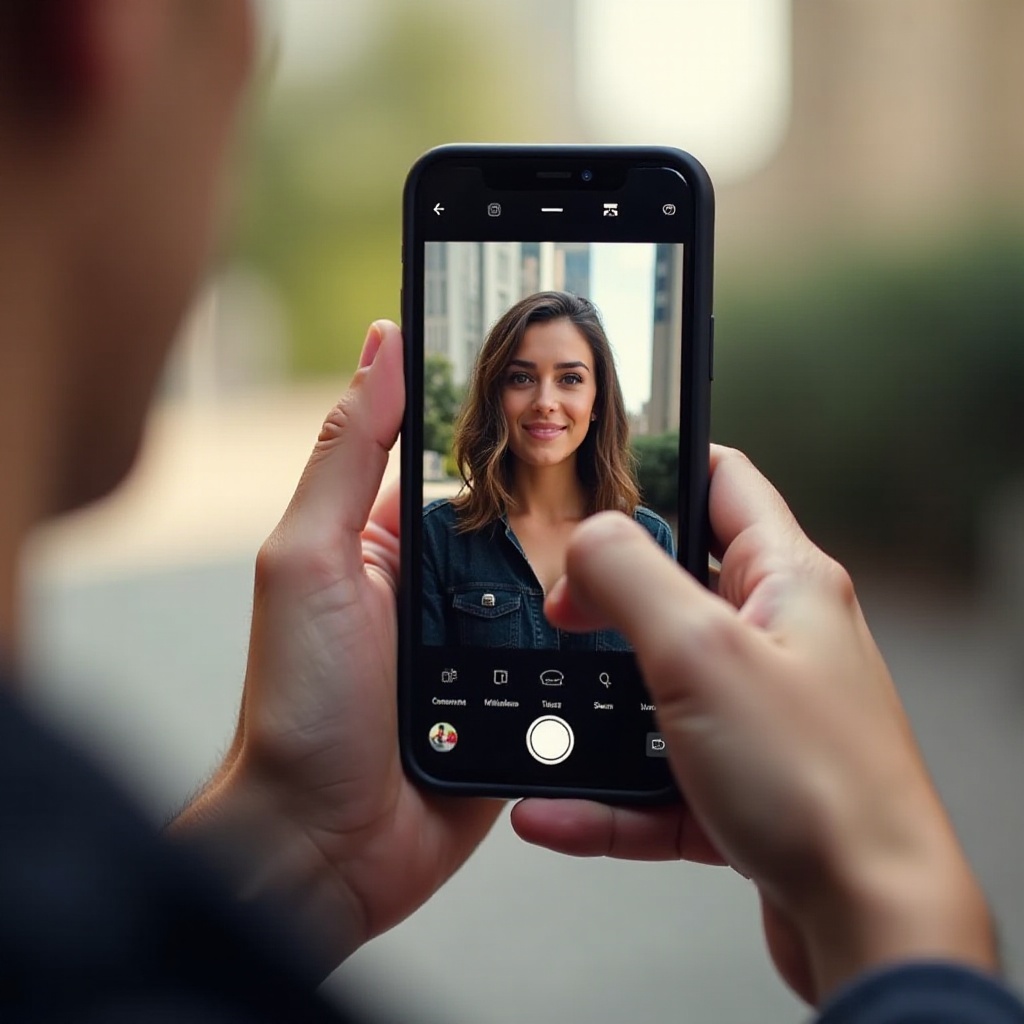
There are instances where the depth effect inaccurately delineates the subject’s edges. Utilize editing options to meticulously adjust focus points if initial calculations fall short.
Ensuring Proper Subject Highlighting
Make sure the portrait lighting is effectively highlighting your subject. If it appears dim or inaccurate, re-adjust the lighting mode within the app for an enhanced visual presentation.
Advanced Tips for Creative Portrait Photography
Beyond basic editing, leverage these tips for unparalleled creativity.
Leveraging Natural Lighting
Natural light typically contributes softer shadows and balanced hues. Aim to shoot near windows or outside during the golden hour for natural brilliance.
Composing for Dramatic Effects
Play around with angles and compositions. Lowering your shooting angle can add prominence to subjects, which, when coupled with Portrait Mode, results in striking imagery.
Conclusion
Learning how to convert photos to Portrait Mode on your iPhone transcends simple enhancement; it brings a professional aura to your images. This guide equips you with the necessary tools to not only create but also elevate your photos, making them unforgettable. By refining details or embracing dramatic edits, you imbue every image with the allure of a refined portrait. Take command of your iPhone’s photographic capacity and leave an indelible mark with every snap.
Frequently Asked Questions
What iPhone models support Portrait Mode?
Portrait Mode is available on models from iPhone 7 Plus onward, including newer SE models.
Can you revert a photo after converting to Portrait Mode?
Yes, iPhone allows you to revert to the original version of your photo anytime through the Photos app.
How can I ensure the best quality when converting photos?
Choose well-lit images, maintain a clear subject-background separation, and refine details using editing tools for optimal results.