Introduction
Managing time zones effectively is vital for keeping your schedule accurate when you travel or work across different regions. The iPhone calendar is a comprehensive tool that allows you to keep your appointments organized and timely. Understanding how to adjust time zone settings is crucial for optimizing your calendar’s functionality and avoiding scheduling errors.
The iPhone calendar’s intuitive interface provides flexibility and control, allowing users to easily adjust time zones. This article explores how you can effectively change and manage time zones on your iPhone calendar, ensuring your plans remain on track and efficiently managed.
Understanding Time Zone Settings on iPhone Calendar
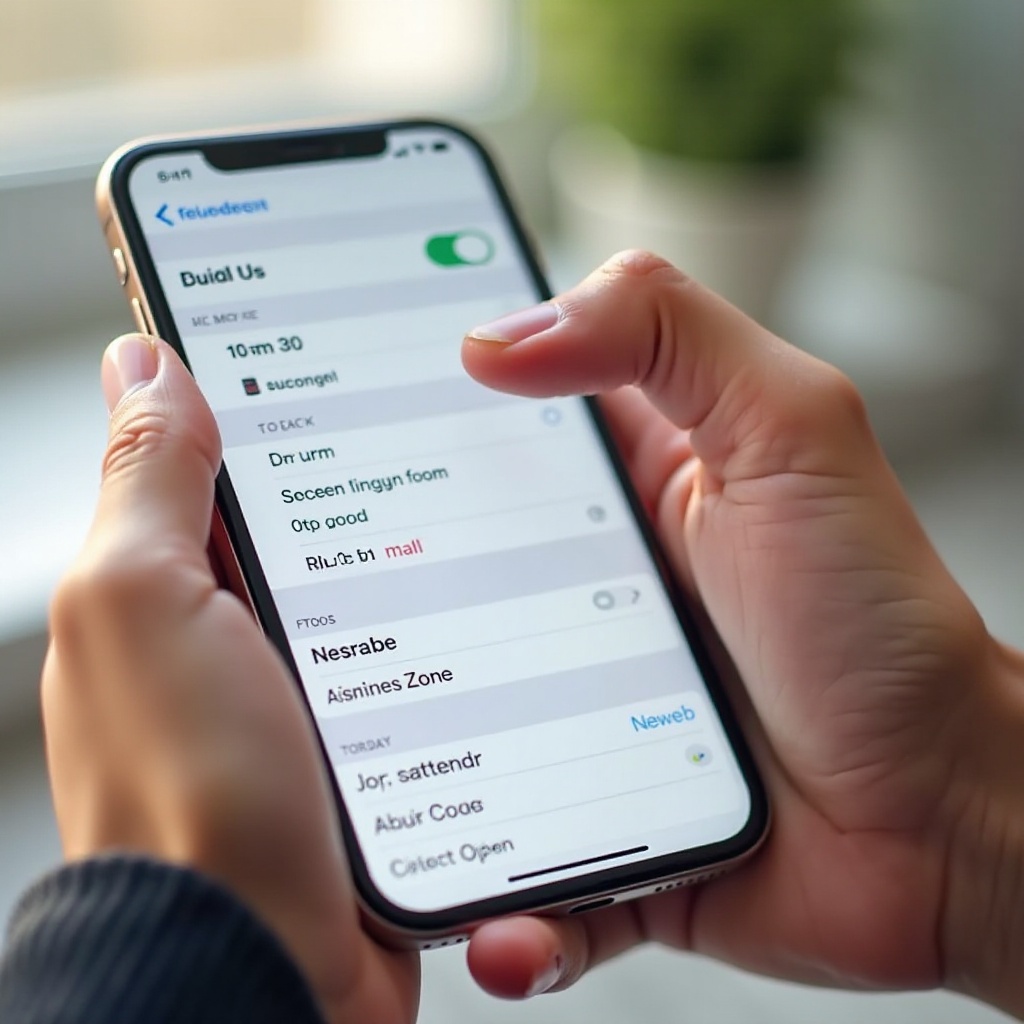
The iPhone calendar is equipped with default time zone settings, typically set according to the region where your device was initially set up. Understanding this is essential for making future adjustments. Here’s a detailed breakdown:
- Default Settings: These are generally set to your local timezone but can be changed to another timezone, especially useful if you’re traveling or residing temporarily in a different location.
Customizing the time zones for specific events can also prove beneficial. For instance, setting specific time zones for meetings or events with colleagues across different regions ensures everything aligns seamlessly.
Grasping these settings is key to accurately reflecting your intended schedule and maintains organization within both professional and personal appointments.
Step-by-Step Guide to Changing Time Zone on iPhone Calendar
Changing the time zone on your iPhone calendar is straightforward. Follow these steps for a seamless adjustment:
- Accessing Time Zone Settings:
- Open the ‘Settings’ app on your iPhone.
- Scroll down and select ‘Calendar.
-
Locate ‘Time Zone Override’ and toggle it on.
-
Modifying the Time Zone:
- With the override activated, use the search bar or scroll to find and select your new time zone.
-
Choose from the global list of time zones available.
-
Saving and Verifying Changes:
- The time zone change will auto-save once selections are made.
- Exit settings and open your calendar to ensure the updates reflect accurately on your scheduled events.
By following these steps, your calendar maintains accuracy and aligns closely with your real-time scheduling needs. This adaptability is beneficial when traveling or coordinating meetings across varying zones.
Troubleshooting Common Time Zone Issues
Even with correct settings, issues may arise, causing your iPhone calendar to display incorrect times. Here are some strategies to troubleshoot these potential problems:
- Resolving Incorrect Time Zone Displays:
- Verify that ‘Time Zone Override’ is active.
-
Ensure your device operates on the latest software version, as updates often resolve minor glitches.
-
Sync Issues Across Devices:
- Confirm that all Apple devices utilize the same Apple ID for seamless iCloud Calendar syncing.
- Verify internet connectivity for real-time syncing.
- Check the syncing settings via ‘Settings > [Your Name] > iCloud.
Addressing these issues proactively helps maintain information flow and precision in your calendar across all devices.
Tips for Effective Time Management Using iPhone Calendar
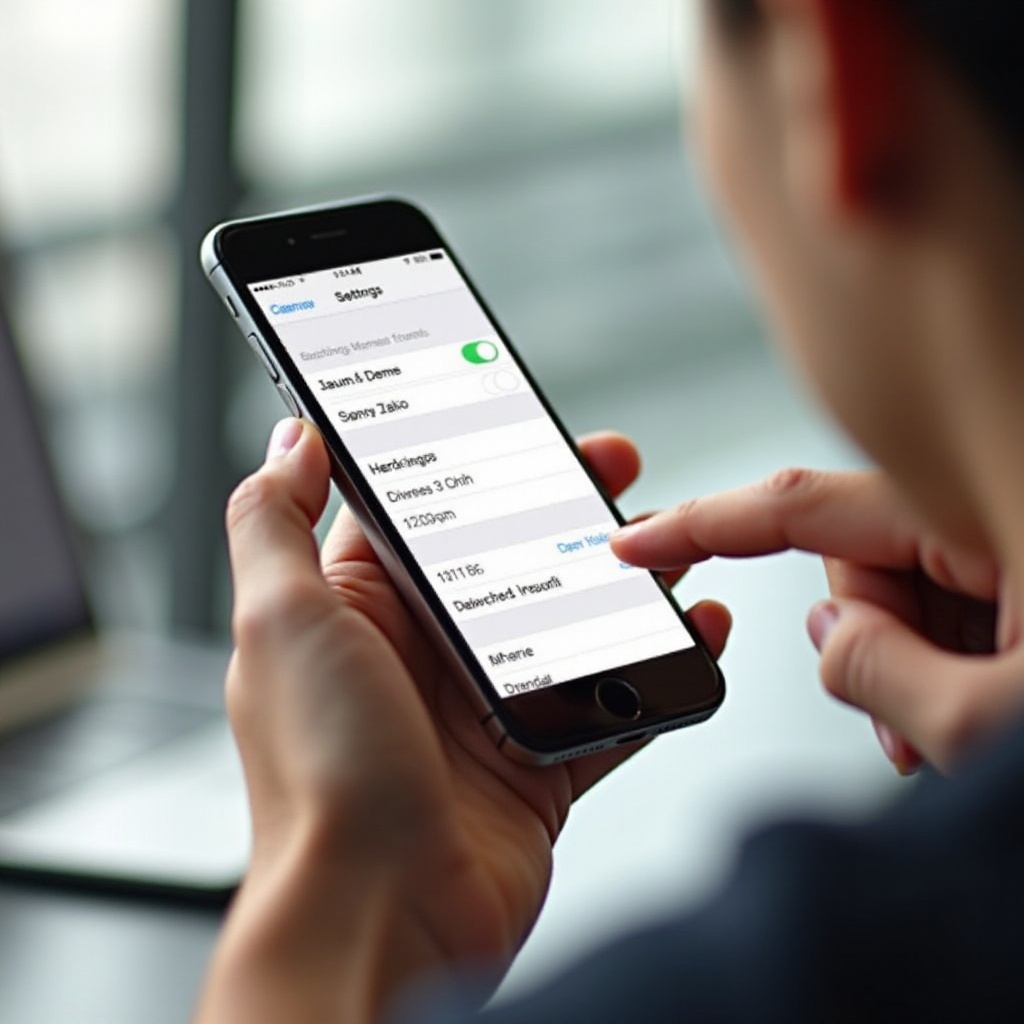
The iPhone calendar is a powerful tool when managed appropriately, especially when dealing with multiple time zones:
-
Setting Event Time Zones for Travel: Adjust individual event time zones instead of altering the entire calendar, especially advantageous when traveling.
-
Utilizing Alerts and Reminders: Set alerts adjusted to different time zones, ensuring timely notifications related to those regions.
Incorporating these tips bolsters accurate time management, reducing stress and maintaining high productivity levels despite complex schedules.
Conclusion
The ability to understand and manage time zones on your iPhone calendar is essential for maintaining accuracy and reducing timing errors across different regions. By following a simple process, resolving potential issues, and adopting effective time management techniques, you can maximize your iPhone calendar’s utility.
Effective time zone management not only enhances productivity but ensures preparedness regardless of your location or that of your collaborators, thereby improving overall scheduling efficiency.
Frequently Asked Questions
How can I set different time zones for different events on my iPhone calendar?
To set different time zones for specific events, open the event in your calendar, tap ‘Edit,’ then select ‘Time Zone’ and choose the appropriate zone for that event.
Why is my iPhone showing the wrong time zone after traveling?
If your iPhone shows the wrong time zone, ensure ‘Location Services’ is enabled under ‘Settings,’ as it updates the time zone based on your current location automatically.
How do I ensure my calendar syncs correctly across all my devices?
Make sure ‘iCloud Calendar’ is enabled on all devices using the same Apple ID. Check your internet connection and software updates for uninterrupted syncing capabilities.