
Introduction
Moving stickers add a dynamic touch to digital conversations, allowing a personalized flair that static images can’t achieve. The iPhone provides numerous tools and apps to help users design animated stickers effortlessly. This comprehensive guide will show you how to create moving stickers step-by-step and offer creative techniques to improve your digital interactions.
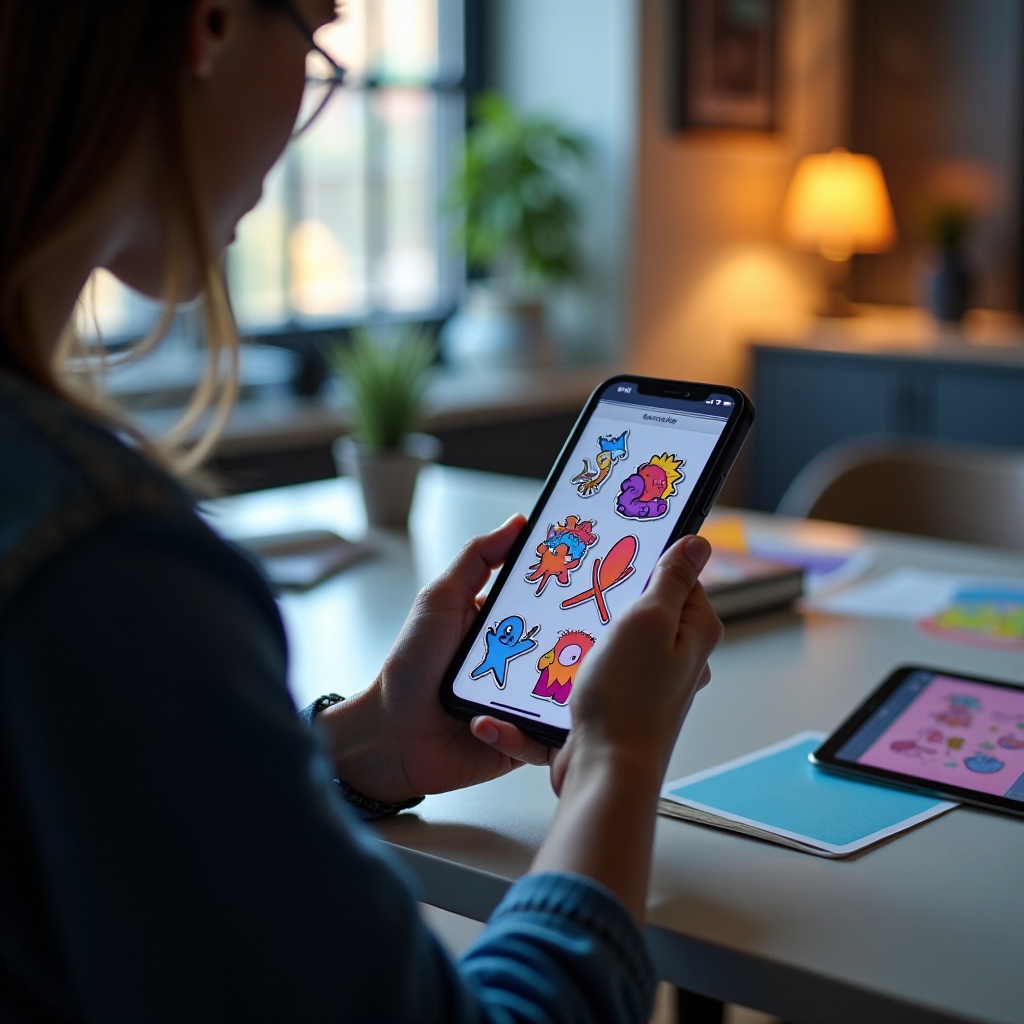
Tools and Apps for Creating Moving Stickers
To begin your journey in creating moving stickers on iPhone, selecting the appropriate tools is essential. Numerous apps exist to assist in sticker creation, each catering to different needs with varied features. Popular apps include:
- Sticker Maker Studio: Offers easy customization and animation options.
- PicsArt Animation: Known for its robust features and user-friendly interface.
- Giphy: Ideal for both static and animated stickers, providing a wide selection of assets.
Choosing an app that suits your requirements will set the foundation for a successful sticker creation experience. Dive into the creative process once you have your tools ready.
Creating Your First Moving Sticker
Creating moving stickers involves artistry combined with technical skills. Follow these steps to create your own:
- Design Concept: Sketch or visualize the design and message of your sticker.
- Select Elements: Open your selected app and import or choose elements for animation.
- Add Animation: Apply the app’s tools to introduce motion into your design, like waving or blinking.
- Review and Edit: Adjust speed and transitions for a smooth animation experience.
Experimentation will help you develop a design style that works best for your animated stickers. With a basic sticker created, explore advanced techniques to further elevate your designs.
Advanced Techniques for Dynamic Stickers
For more complex animations, explore advanced techniques that can add depth and dynamism:
- Layering Effects: Utilize layers to structure your animations, creating cohesive movements.
- Custom Brushes: Enhance detail and intricacy with the app’s brush settings.
- Programming Interactivity: Advanced apps allow coding to create interactive stickers responding to inputs.
These techniques enhance your creative output and offer new layers of engagement with your stickers.
With your dynamic stickers crafted, the next crucial step is sharing them effectively across platforms.
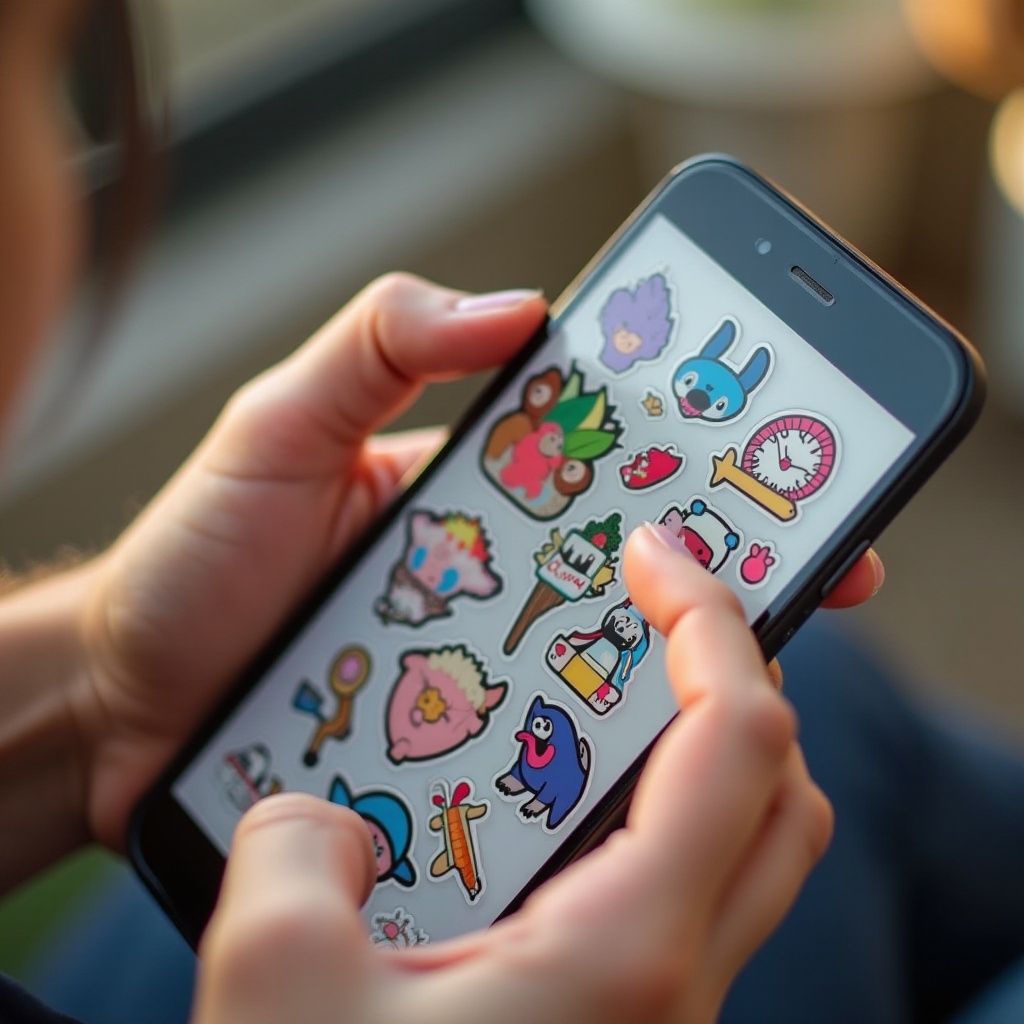
Sharing and Using Stickers on Your iPhone
After designing, make sure your stickers are used effectively to enrich your communications:
- Import to iMessage: Save and upload stickers in a conversation via the sticker section.
- Social Media Platforms: Use Instagram and WhatsApp to import as stickers or animated GIFs.
- Everyday Conversation: Regular use enhances expression, adding a personal touch to interactions.
Building your sticker economy impacts conversations, making them more lively and personalized.

Conclusion
Creating moving stickers on iPhone is both fun and practical, blending creativity with digital expression capabilities. By following these comprehensive steps, you can make animated stickers that convey your unique style and message. Whether personalizing chats or innovating artistically, the potential with moving stickers is vast. Begin your creative adventure today and transform your digital conversations.
Frequently Asked Questions
Can I create stickers directly on my iPhone without third-party apps?
While iPhone has basic editing tools, third-party apps offer extensive features tailored for creating animated stickers.
What file formats are best for moving stickers?
The GIF format is recommended due to its animation support and compatibility across multiple platforms.
How can I share my stickers with friends on different devices?
Export stickers as GIFs or utilize messaging apps that support sticker packs for cross-platform sharing.