
Introduction
Removing a SIM card from an iPad may seem complex if you’re unfamiliar with the device’s hardware and settings. However, whether you’re troubleshooting, upgrading your device, or planning to switch carriers, knowing how to safely take out the SIM card is vital. This guide provides clear instructions to help ensure a smooth and effective removal process. We’ll simplify the task and address potential hurdles you may face.
Understanding SIM Card Functionality in iPads
Before beginning the removal process, it’s important to understand the function of SIM cards in your iPad. Devices that come with cellular capabilities, compared to their Wi-Fi-only counterparts, utilize SIM cards to connect to mobile networks, enabling data transmission via cellular services.
- Types of iPads Supporting SIM Cards: Models such as the iPad Mini, iPad Air, and iPad Pro with cellular variants contain SIM slots. Verifying your iPad model is key in the SIM removal procedure.
- Role of SIM Cards in Cellular iPads: SIM cards grant access to cellular networks, facilitating mobile data use for staying connected on the go.
With this foundation, you’ll proceed with clarity to ensure careful handling of these components as you prepare for the next steps.
Preparation Steps Before Removing the SIM Card
Preparation is crucial for a hassle-free SIM card removal, ensuring your device’s safety.
- Ensuring Device Compatibility: Verify your iPad model and its SIM card support by checking its specifications or referencing Apple’s website to avoid unnecessary actions if your device lacks a SIM slot.
- Backing Up Your Data: Always back up data before making any modifications. Utilize iCloud or iTunes to safeguard files, preventing data loss during the SIM removal.
- Powering Down the iPad: Shut down the iPad before removing the SIM card to prevent damage and ensure safe operation.
Having prepared, you can now proceed confidently to the SIM card extraction instructions.
Step-by-Step Guide to Removing SIM Card
With everything ready, follow these steps for removing your iPad’s SIM card:
- Necessary Tools and Accessories: Equip yourself with a SIM removal tool or a straightened paper clip.
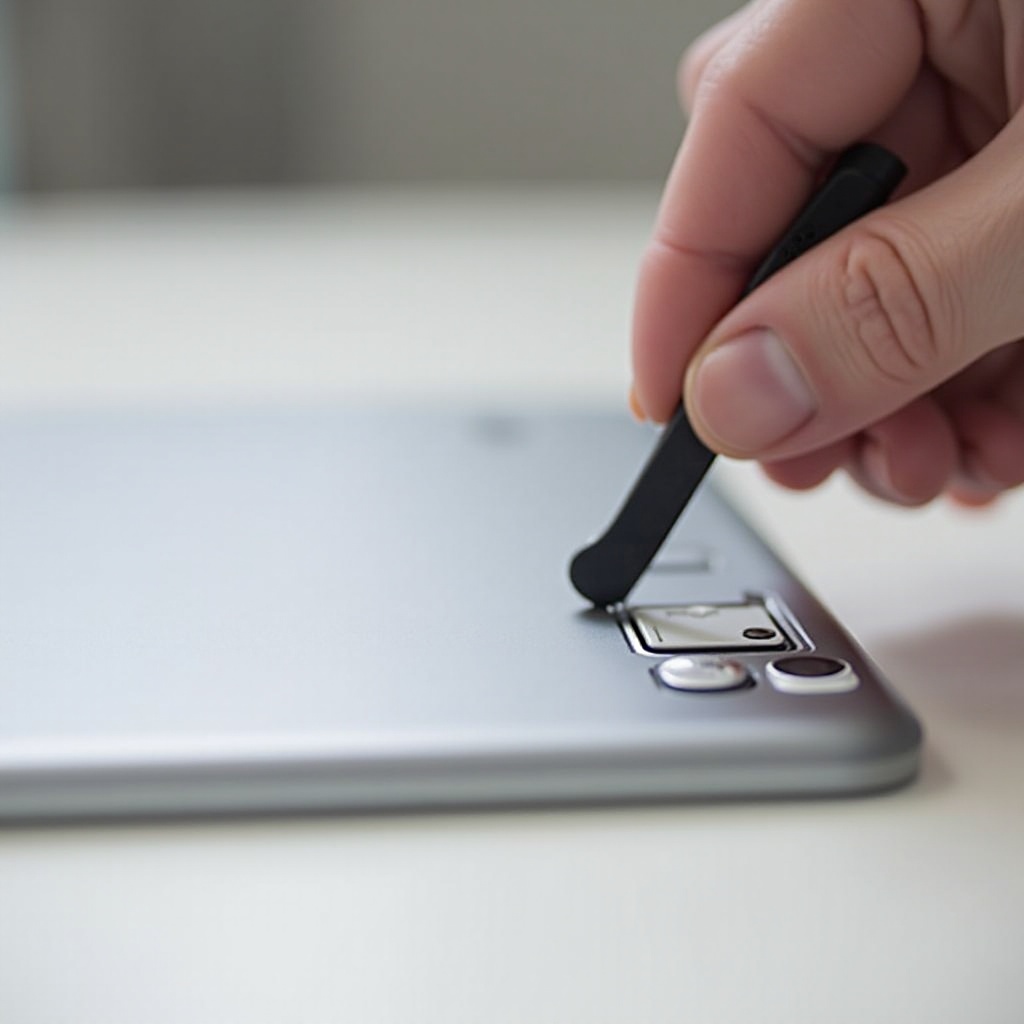
- Locating the SIM Card Tray: Spot the tray along the iPad’s side—typically marked by a small hole.
- Proper Technique for Ejecting SIM Card:
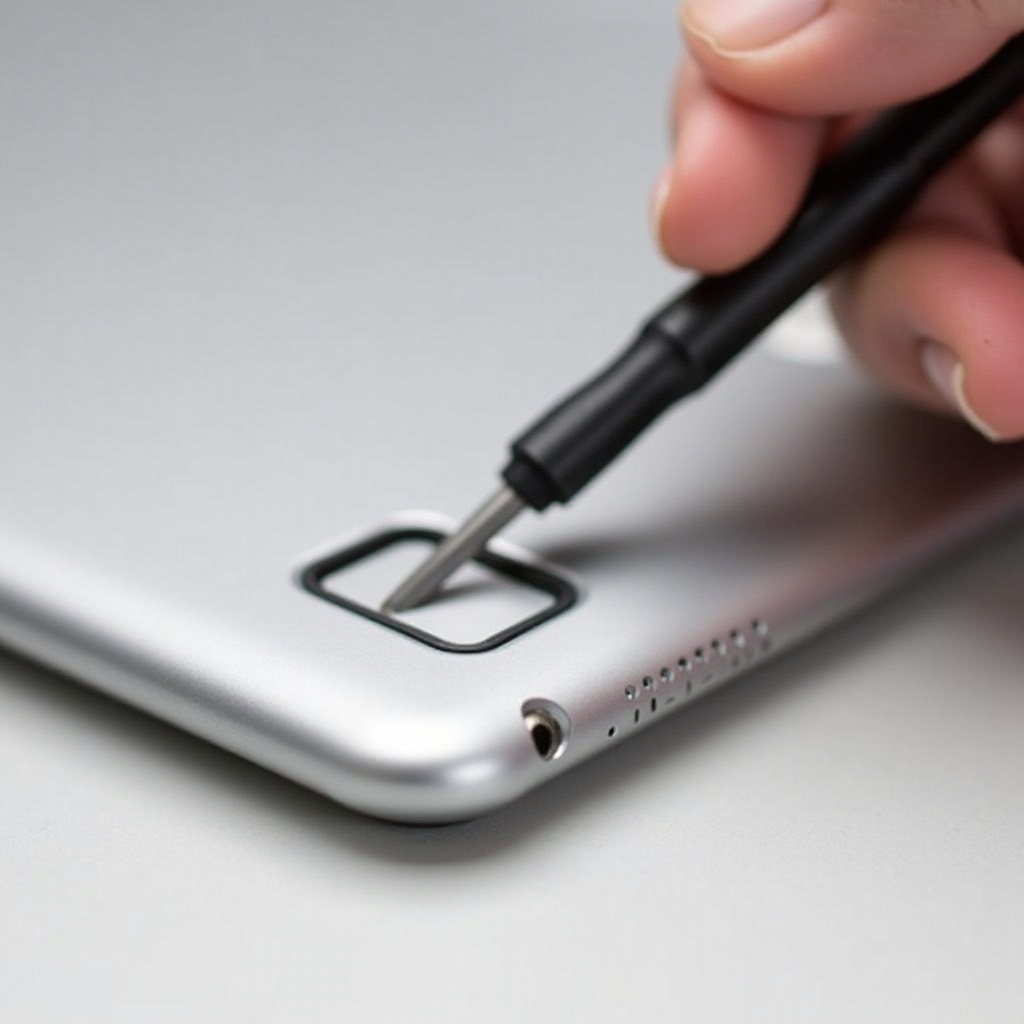
- Insert the tool or paper clip into the hole beside the SIM tray.
- Apply gentle pressure until the tray pops out.
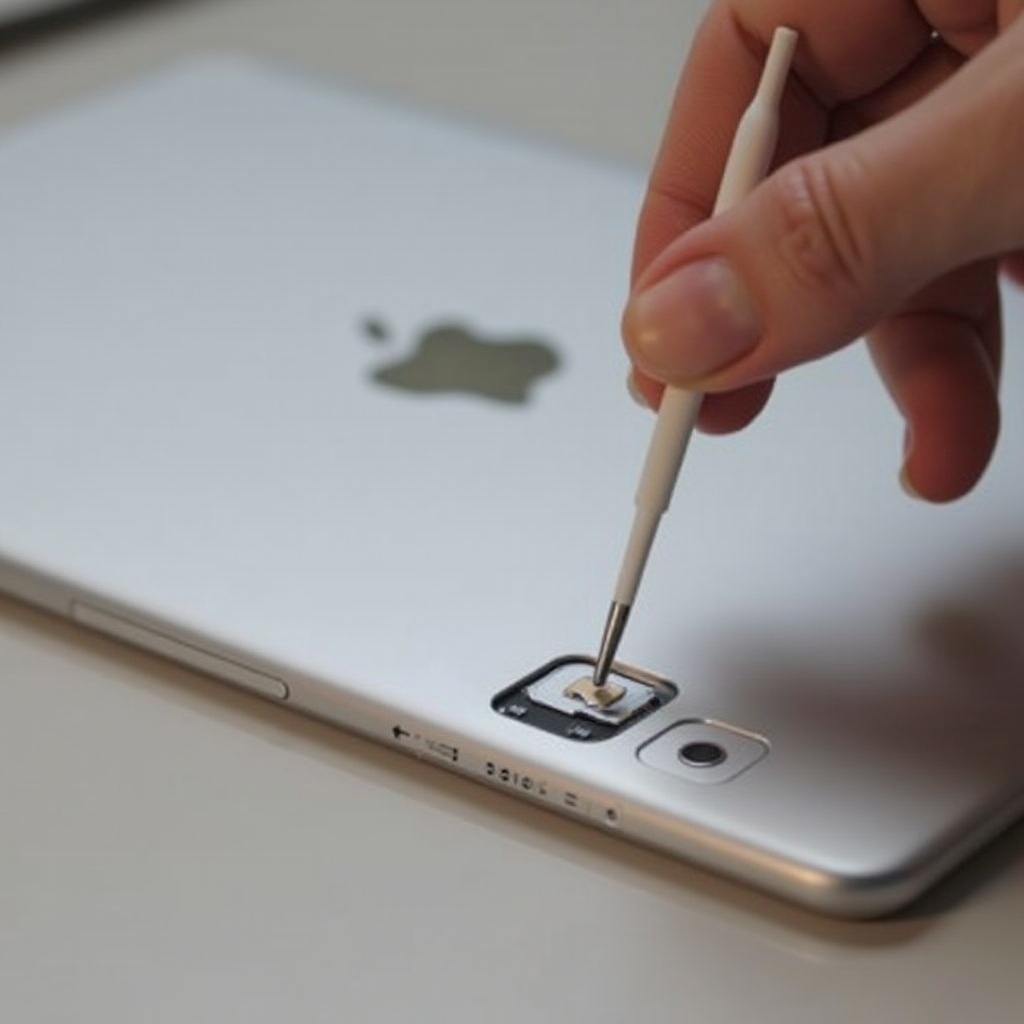
- Carefully extract the tray and remove the SIM card.
Once the SIM card is safely removed, our troubleshooting tips will assist in resolving any issues.
Troubleshooting Common SIM Card Removal Issues
Sometimes you may encounter difficulties during SIM card removal. Here’s how to tackle them effectively:
- SIM Card Tray Won’t Open: If the tray isn’t ejecting, verify precise pressure application and ensure tool suitability and alignment.
- SIM Card Recognition Problems: If your iPad doesn’t acknowledge the SIM card post-removal, examine the card for damage and confirm it’s positioned properly when reinserted.
- Handling a Damaged SIM Card: Should the SIM card appear worn or damaged, liaise with your carrier to acquire a replacement and bypass connectivity issues.
With potential problems resolved, you’re now ready to insert a new SIM card or reposition the existing one with our provided tips.
Tips for Replacing and Inserting a New SIM Card
Following SIM card removal, you may need to replace it or insert a different one. Here’s how to go about it:
- Correct Insertion Technique: Accurately align the new SIM card within the tray, avoiding forceful action ensuring a snug fit.
- Adjusting Cellular Settings: Post new SIM card insertion, navigate settings to alter necessary network configurations.
- Switching Carriers Considerations: When switching carriers, confirm the new SIM card’s compatibility with your device for optimal performance.
These pointers facilitate smooth SIM replacements and reinforce seamless functionality transition.
Conclusion
We’ve outlined detailed steps for removing and inserting an iPad SIM card. Observing these guidelines ensures an error-free, smooth experience, emphasizing attentive handling and preparation for safeguarding your device and data.
Frequently Asked Questions
Can I remove the SIM card while the iPad is on?
No, it is advised to power down your iPad before removing the SIM card to prevent potential damage.
What should I do if my SIM card tray is stuck?
Ensure you’re using the appropriate tool and that it’s aligned properly. If issues persist, seek professional help.
How do I know if my iPad needs a SIM card replacement?
If your iPad fails to recognize the SIM card after reinsertion or if the card is physically damaged, consider a replacement with your carrier’s assistance.