Introduction
The idea of using a TV as a second monitor is gaining popularity, as it can greatly enhance both your workspace efficiency and entertainment setup. This hybrid setup attracts those eager for extensive screen real estate without the added cost of a new computer monitor. Imagine working on complex spreadsheets, editing photos, or enjoying games on a screen size typically unachievable with standard monitors. The prospect of utilizing existing home TVs as practical monitors is captivating. However, one must navigate the technicalities and practical aspects before making this a reality. This guide delves deep into the nuances, potential benefits, and limitations of transforming your TV into an effective additional display for your computing needs.
Benefits of Using a TV as a Second Monitor
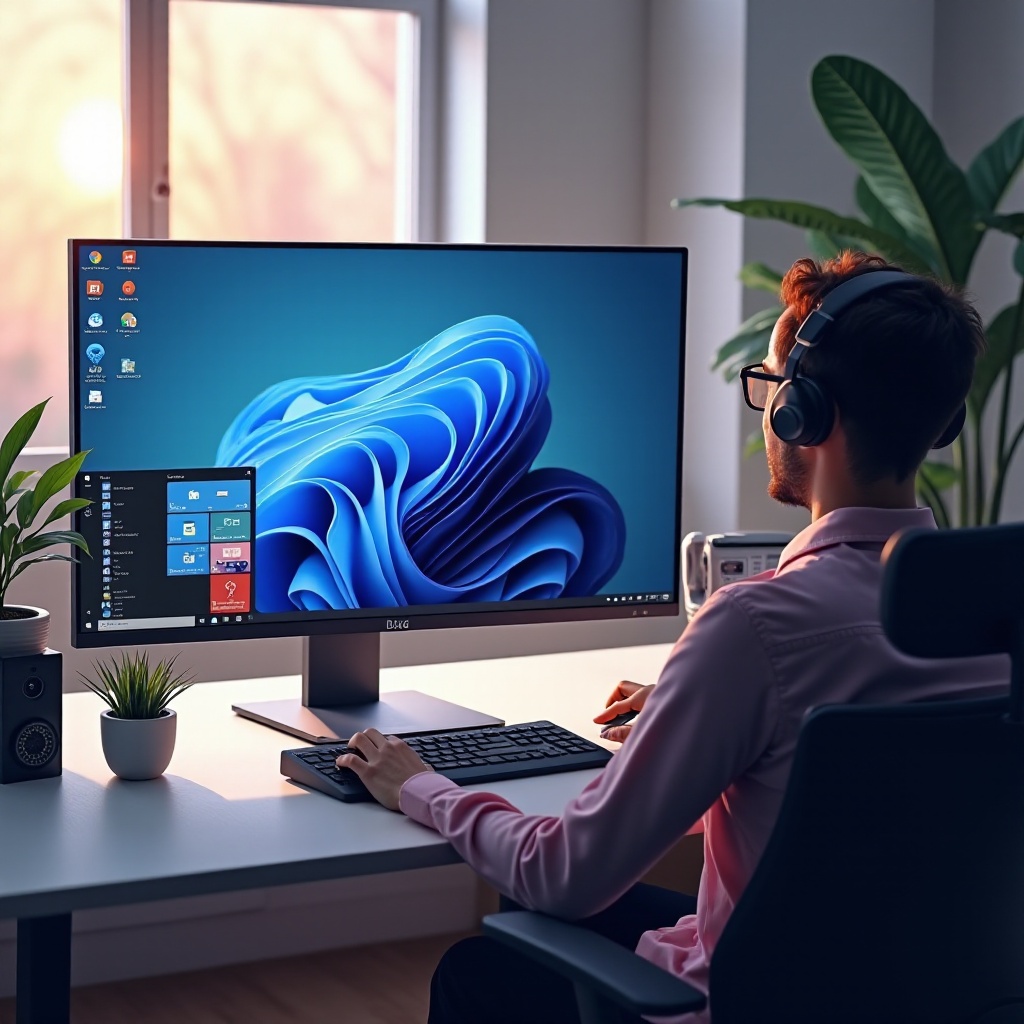
Adopting a TV as a second monitor yields multiple advantages. A crucial benefit is the enlarged screen, which provides a broader view useful for detailed tasks. Whether handling vast spreadsheets or engaging in video editing, the expansive screen fosters productivity through effective multitasking.
In terms of entertainment, the enhanced visual experience cannot be overstated. A larger display deepens your immersion in movies and shows. Gaming, too, sees a leap in enjoyment, with vivid graphics translating into a near-cinematic experience, surpassing traditional monitors in some aspects.
Moreover, it’s cost-effective. Leveraging an existing TV means there’s no need for a separate monitor purchase, making it an economically attractive choice. However, before repurposing your TV in this manner, consider several important factors to ensure a smooth setup and operation.
Key Considerations Before Setting Up
Successfully using a TV as a second monitor involves attention to several key aspects.
Compatibility and Ports
Before making connections, verify the compatibility between your TV and computer. Modern devices usually feature HDMI ports, easing setup. However, with older models, alternative connections like VGA or DVI may be required. Assess both devices’ ports, procuring necessary cables or adapters as needed.
Resolution and Refresh Rate
The TV’s resolution and refresh rate are pivotal to display quality. At a minimum, Full HD (1080p) resolution is desired; utilizing a 4K TV can vastly improve clarity and detail. Standard TVs often have a 60Hz refresh rate sufficient for general use, though dedicated gaming TVs with higher refresh rates are preferable for gamers.
Desk Space and Ergonomics
Unlike monitors, TVs are typically bulkier, requiring ample desk space for accommodation. Evaluate your workspace for suitability. Pay heed to ergonomics: positioning your TV effectively minimizes eye and neck strain. Adjust the viewing angle and height to harmonize with your seating position, ensuring comfort during extended use.
Following a clear plan ensures a hassle-free process of incorporating a TV into your computer setup, maximizing benefits while sidestepping potential issues.
Step-by-Step Guide to Setting Up a TV as a Monitor
Upon deciding that utilizing a TV as a second monitor fits your scenario, employ the following steps for efficient setup.
Connecting the TV to Your Computer
-
Identify Ports: Inspect the TV and computer for compatible ports.
-
Connect Cables: Link your devices using a suitable cable, generally an HDMI.
-
Switch Input: Set the TV’s input source to correspond with your computer’s output.
Adjusting Display Settings
-
Access Display Settings: Access your computer’s display settings through the desktop context menu.
-
Select Arrangement: Configure the TV as a secondary display, deciding between display mirroring or extension.
-
Resolution Setup: Align the resolution settings with the TV’s capabilities for the best clarity.
Optimizing TV Settings for Monitor Use
-
Picture Mode: Opt for the ‘Game’ or ‘PC’ mode to decrease response time.
-
Disable Enhancements: Turn off features like motion smoothing for clear visual fidelity.
-
Calibrate Colors: Adjust brightness and contrast for optimal visual output.
Common Challenges and How to Overcome Them
Despite the advantages, some challenges come when using a TV as a monitor.
Image Clarity and Resolution Issues
Image distortion or blurriness often arises if the TV and computer resolutions are mismatched. Correct this by setting the computer’s output resolution to align with the TV’s native resolution, tweaking settings accordingly to achieve a balanced display.
Input Lag and Refresh Rate Solutions
Input lag, notably bothersome for gamers, should be addressed for seamless interaction. Utilize the TV’s ‘Game’ or ‘PC’ mode to cut down on latency. Ensure the TV supports the requisite refresh rates corresponding to your usage requirements.
Audio Management
Audio settings could pose a challenge between your computer and TV. Should issues arise where sound fails to output through the TV, adjust the computer’s audio settings, setting the TV as the primary audio output for synchronized aural and visual output.
Conclusion
Utilizing a TV as a second monitor intricately blends utility with accessibility, drastically improving user experience with its increased brightness and size. Economically this setup expands screen real estate without necessitating further monitor investments. Addressing compatibility, space, and specific settings forethought ensures a seamless transition and usage experience. While challenges like resolution and input lag need tackling, implementing the tips in this guide assures an effective setup, enriching both work and leisure activities.
Frequently Asked Questions
Can I use a TV as a second monitor for gaming?
Yes, using a TV for gaming is feasible, often providing immersive visual experiences. Ensure the TV offers a suitable refresh rate, usually 60Hz or above.
How do I fix the blurry text on my TV monitor setup?
Adjust the computer’s resolution settings to align with the TV’s native resolution. Consider altering scaling settings for clearer text.
What features should I look for in a TV to use as a monitor?
Prioritize features like a minimum of 1080p resolution, appropriate input ports, a suitable refresh rate, and low input lag for effective performance.