Introduction
Customizing your MacBook home screen can greatly enhance your user experience, allowing you to tailor the interface to align with your preferences. With this guide, you’ll navigate from understanding the importance of a personalized home screen to making efficient changes using native features and tools.
Understanding Your MacBook Home Screen
Before customizing, grasp the basics of your home screen, which acts as your control center—encompassing your dock, widgets, and desktop background. A personalized setup isn’t just aesthetically pleasing; it’s integral for enhancing your day-to-day interaction with the device.
Comprehending features and options is crucial to prepare for alterations. This foundational knowledge will aid in seamlessly transitioning into preparatory steps, ensuring effective customization.
Preparing for Home Screen Customization
Preparation is crucial for a smooth customization process. Begin by backing up existing settings to avoid any loss during the transition.
- Back Up Settings: Utilize Time Machine or another reliable tool to secure your current setup.
- Choose a Theme: Reflect on your preference for minimalism or vibrancy—decide on colors or thematic elements you wish to introduce.
Well-prepared groundwork paves the way for transforming the visual appeal of your screen through wallpaper changes.
Changing Your Wallpaper
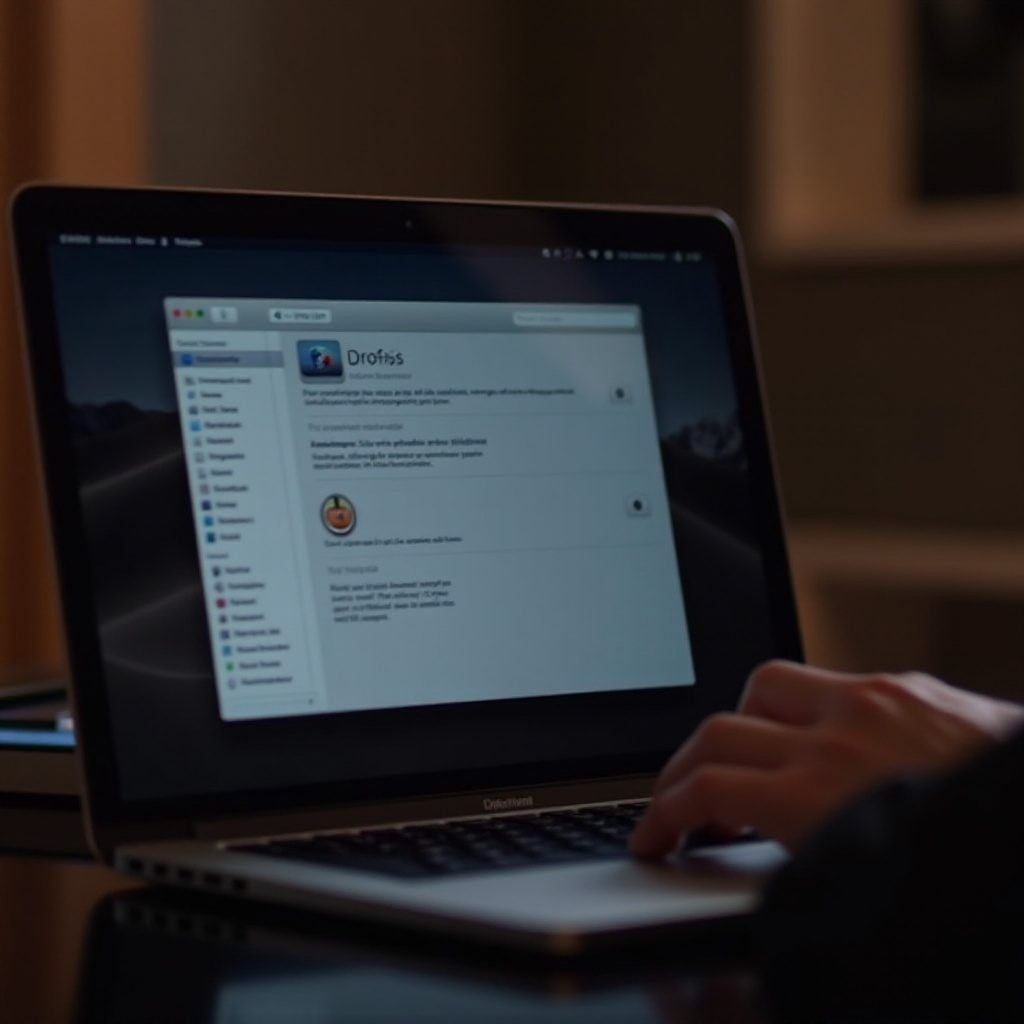
Wallpaper swaps significantly influence your MacBook’s interface aesthetic. Follow these steps:
- Access Wallpaper Settings: Click the Apple logo at the top left, select ‘System Preferences,’ then ‘Desktop & Screen Saver.
- Select Right Resolution and Images: Opt for high-resolution images (2560×1600 for MacBook Pro) to enhance clarity. Choose from built-in options or upload personal photos.
An updated wallpaper refreshes your screen’s appearance, seamlessly flowing into the task of arranging icons and widgets for optimal functionality.
Organizing Icons and Widgets
Here’s how to maximize efficiency by managing space and quick access to applications:
- Create Folders for Apps: Group similar apps to keep your desktop uncluttered by dragging one app onto another to form folders.
- Choose Useful Widgets: Add widgets for instant access to necessary information. Customize them by clicking ‘Edit Widgets’ in the Notification Center.
Organizing your setup drastically boosts productivity and user experience, allowing you to delve into personalizing system preferences.
Personalizing System Preferences
Customization extends beyond aesthetics to functionality in system settings:
- Adjust Dock Settings: In ‘System Preferences,’ select ‘Dock & Menu Bar’ for size and position adjustments.
- Customize Menu Bar Options: Rearrange icons and add shortcuts to enhance accessibility for frequently used functions.
Fine-tuning system preferences establishes a setup that’s both personally satisfying and pragmatically efficient. The final touches further distinguish the personalized experience of your MacBook’s home screen.
Adding Personal Touches
Incorporating personal elements enriches your interface:
- Use Live Wallpapers: Compatible models can choose dynamic options under ‘Desktop & Screen Saver’ for an animated effect.
- Incorporate Personal Photos: Enrich your setup with personal imagery uploaded as wallpaper settings.
A personalized home screen reflects a blend of style and functionality that’s unique to your needs and preferences.
Conclusion
Customizing your home screen enhances how you engage with your MacBook daily, blending aesthetic appeal with functionality. The outlined steps equip your home screen to be as distinctive as it is efficient. Remember, customization is a dynamic process, always evolving with your tastes and requirements.
Frequently Asked Questions
Can I use third-party apps to change my home screen?
Yes, apps like ‘Customize My Home Screen’ provide additional features beyond MacBook’s native settings.
How do I revert to my original home screen settings?
Access ‘System Preferences,’ use ‘Desktop & Screen Saver,’ and select default settings to restore your screen.
Are live wallpapers supported on all MacBook models?
Live wallpapers are available on MacBooks with macOS Catalina or later, though older models may not support dynamic backgrounds.