Introduction
Syncing your iPad to your MacBook enhances productivity, offering seamless access to your files across both devices. With Apple’s synergy between hardware and software, linking your iPad and MacBook allows for streamlined management of your digital assets. This guide will navigate you through various syncing methods—whether you prefer iCloud’s automatic updates or the direct connect method via Finder. Additionally, we’ll cover troubleshooting common issues and offer advanced tips for an optimized syncing experience.
Understanding Device Compatibility
Before initiating synchronization, verifying device compatibility is essential. Ensuring both your iPad and MacBook are on updated software and meet hardware requirements sets the foundation for successful syncing.
- Ensuring Software Updates: Always check that your iPad and MacBook have the latest versions of iPadOS and macOS installed. Up-to-date software guards against incompatibility and syncing errors.
- Hardware Requirements: Confirm your devices meet necessary hardware specs prevalent in recent models, which typically enhance integration.
Having your devices appropriately prepared enables you to choose the most suitable syncing method for your needs.
Methods for Syncing iPad to MacBook
There are multiple ways to sync your iPad to your MacBook, each offering unique advantages based on user preferences.
- Syncing with iCloud: iCloud allows automated syncing across devices using cloud-based storage, making it easy to access photos, contacts, and files on your iPad and MacBook.
- Using Finder for Manual Sync: By connecting your iPad via USB, Finder lets you control the media and files you sync manually, making it suitable for precise content management.
- Employing Third-party Solutions: For users seeking advanced features not available in Apple’s ecosystem, third-party applications can provide enhanced syncing capabilities.
Let’s delve into detailed steps for syncing via iCloud to harness its efficiency in device integration.
Detailed Steps for iCloud Sync
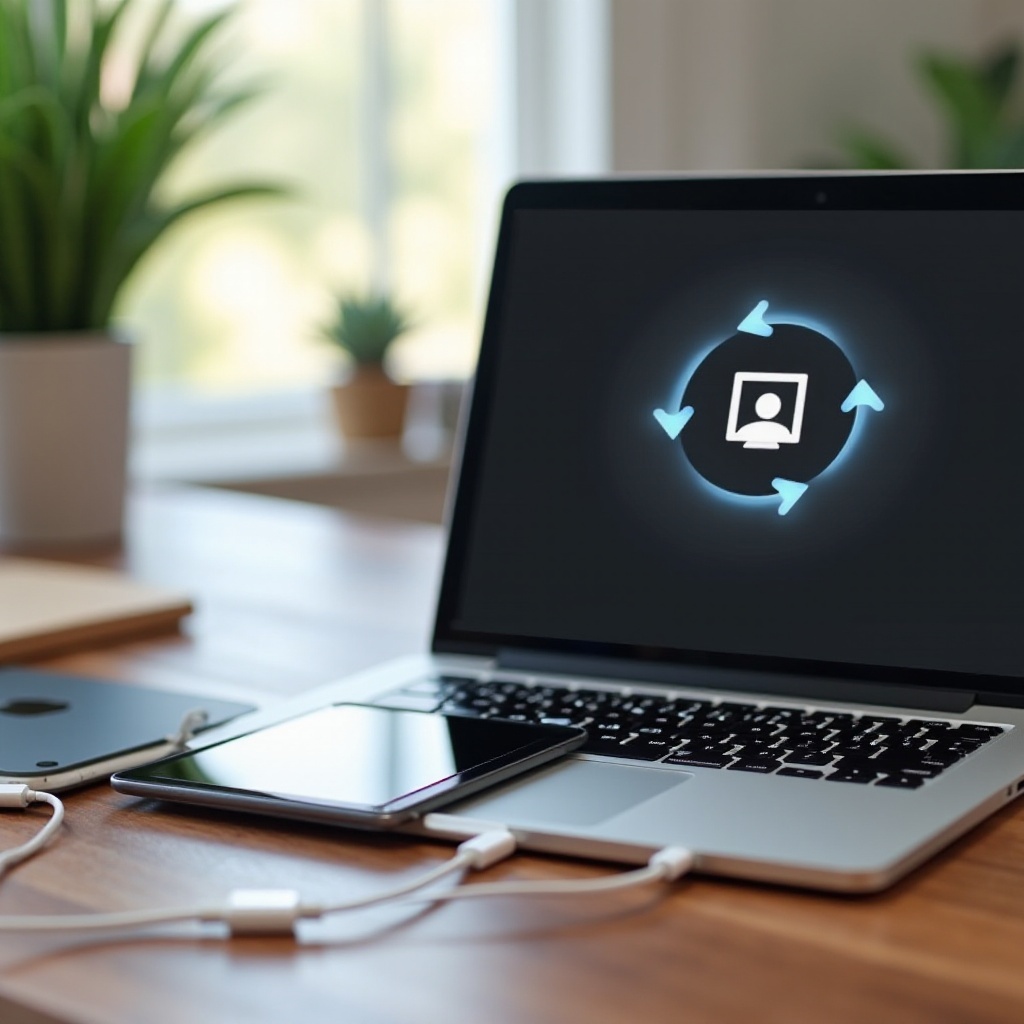
Syncing through iCloud is user-friendly and efficient. Below are the steps to ensure an effective setup and utilization of iCloud for your devices.
- Setting Up iCloud:
- On your iPad, open Settings and tap your Apple ID.
- Choose ‘iCloud’ and verify iCloud Drive is enabled.
-
Do the same on your MacBook by accessing System Preferences.
-
Syncing Key Data Types:
- Enable syncing for essential data like Photos, Contacts, and Calendar on both devices.
Utilizing iCloud streamlines the syncing process, ensuring your data stays current without extra effort. However, if you prefer hands-on data control, syncing through Finder offers robust capabilities.
Syncing via Finder: A Step-by-step Approach
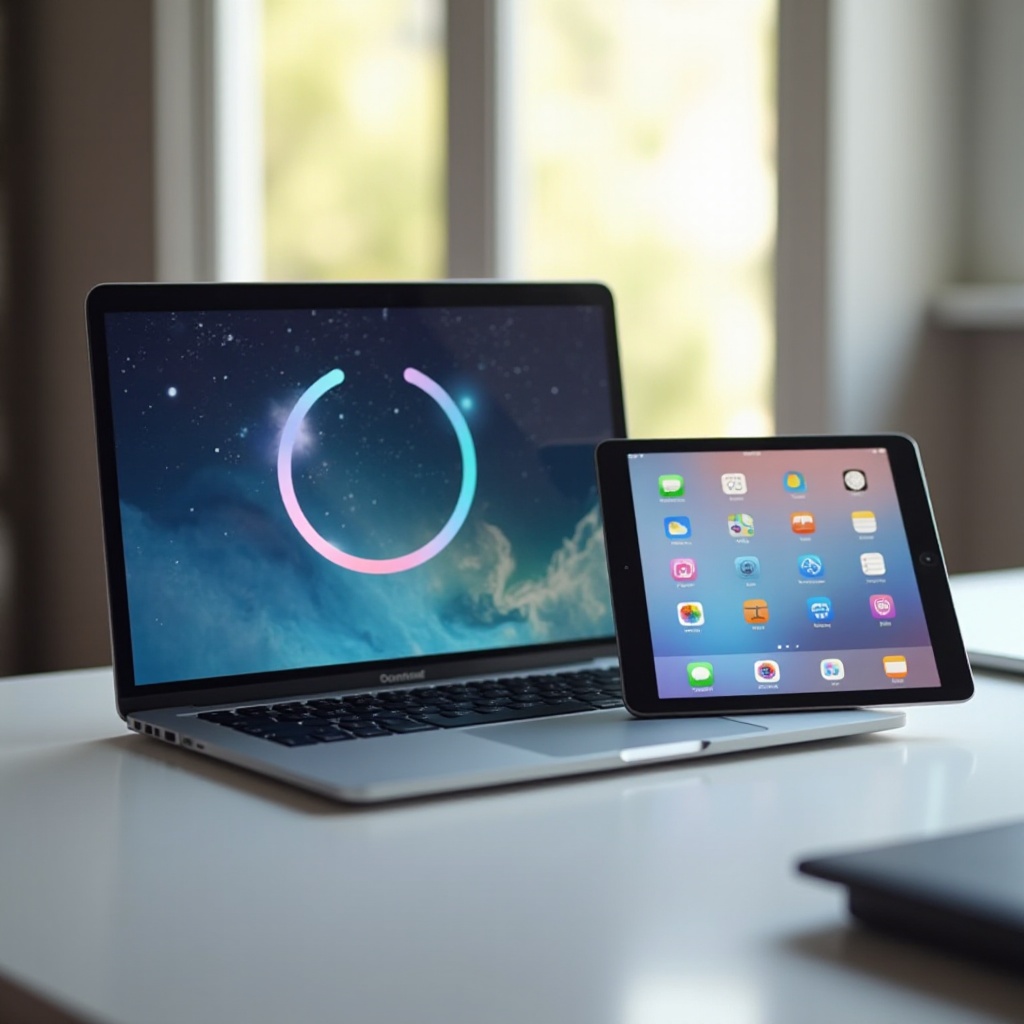
The Finder method provides a direct approach to manage syncing manually, ideal for users who enjoy detailed control.
- Connecting Devices:
- Use a USB cable to connect your iPad to the MacBook.
-
In Finder, your device will appear under ‘Locations’ in the sidebar.
-
Managing Content with Finder:
- Select your device and navigate through tabs like Music and Photos.
- Drag and drop files to initiate manual syncing between the iPad and MacBook.
The Finder method entitles users to decide exactly what content to sync, ensuring personalized management of their data. Should any syncing challenges arise, troubleshooting can resolve them efficiently.
Troubleshooting Sync Issues
Syncing might occasionally hit bumps, but understanding common issues can streamline resolutions.
- Common Problems and Solutions: If devices aren’t showing in Finder, ensure connections are tight and restart both devices. Updating software can resolve compatibility issues.
- Resetting Sync Settings: Persistent failures may require resetting sync settings. For iCloud, toggle sync options off and on to refresh settings.
By mastering troubleshooting steps, a consistent and reliable syncing process can be achieved, paving the way for advanced optimization techniques.
Advanced Syncing Tips
Once basic syncing is established, adopting advanced strategies can further refine efficiency and device performance.
- Optimizing Device Storage: Regularly clear unneeded files and apps to maintain space on your devices, supporting smoother syncing operations.
- Automating Sync Processes: Employ automation tools and Apple Shortcuts to minimize manual tasks, enhancing productivity.
Incorporating these advanced tactics can ensure ongoing efficiency in syncing your iPad to your MacBook.
Conclusion
Seamless syncing between your iPad and MacBook enriches digital management, offering integrated file access across your Apple devices. With methods for iCloud and manual syncing, troubleshooting solutions, and advanced tips, you’re equipped to achieve a consistent syncing routine. By choosing appropriate techniques tailored to your workflow, enjoy the well-coordinated functionality of Apple’s interconnected devices.
Frequently Asked Questions
Can I sync an iPad to a MacBook without using iCloud?
Yes, you can use Finder to sync directly without iCloud. Connect the devices via USB and manage syncing through Finder’s interface.
What to do if my iPad and MacBook aren’t syncing?
Ensure proper device connections and check for pending software updates. Reset sync settings if issues persist for a fresh start.
How can I ensure my data is safe during sync?
Regularly back up data using iCloud or Time Machine. Keep software updated and secure devices with strong passwords to safeguard during sync.