Introduction
Using your Mac keyboard with an iPad can significantly improve your typing speed and comfort, making tasks like document editing or chatting more enjoyable and productive. Whether streaming movies or working on reports, a physical keyboard frees up screen space and enhances your user experience. This guide provides a detailed look into connecting your Mac keyboard to your iPad, addressing compatibility, step-by-step instructions for pairing, and troubleshooting common issues.
Understanding Device Compatibility
Before setting up the connection, it’s crucial to ensure that your devices are compatible. Not all Mac keyboards are created equal, and some older models might not pair well with your iPad.
Compatible Mac Keyboard Models
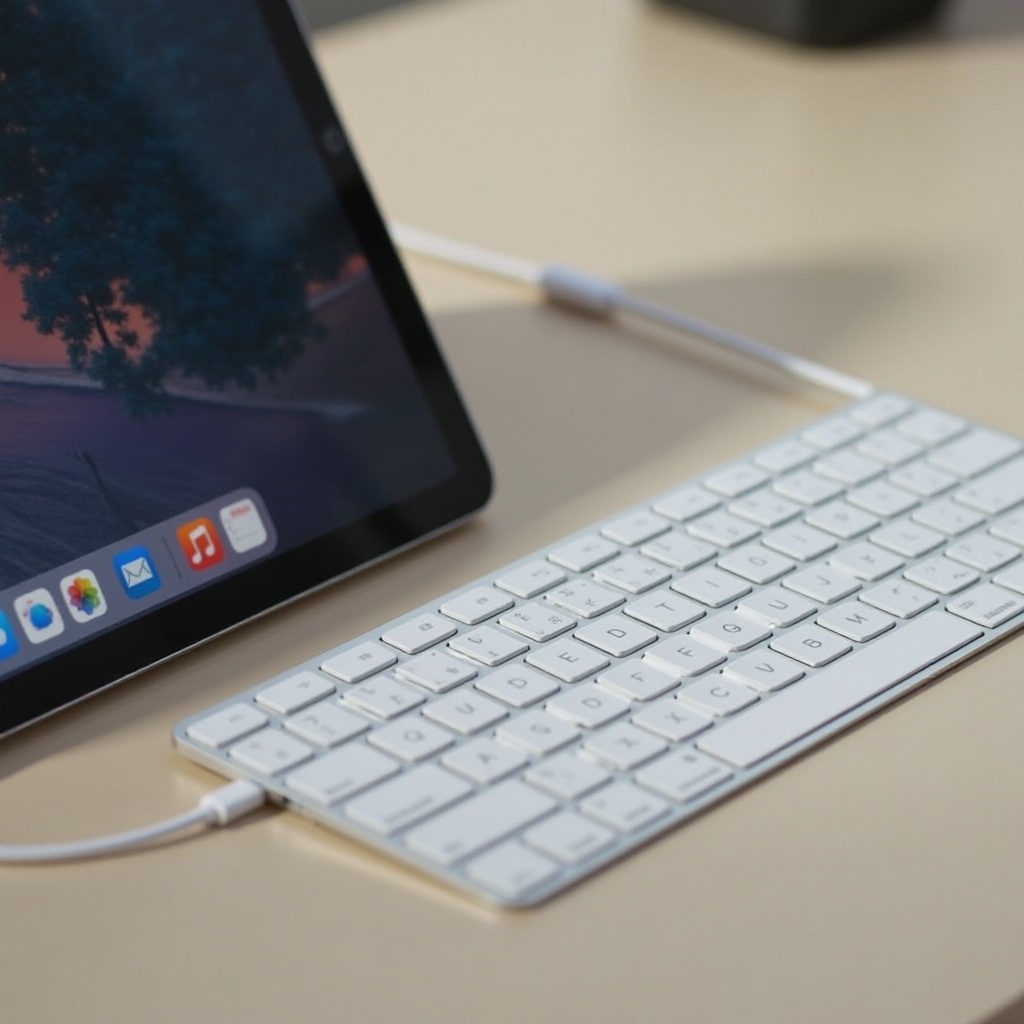
Mac keyboards equipped with Bluetooth, like the Apple Magic Keyboard, are generally compatible with iPads. If you are unsure, a quick visit to Apple’s official support page can verify if your model is supported.
iPad System Requirements
To ensure smooth connectivity, your iPad should run on the latest iOS version that supports Bluetooth connections. Head to Settings > General > Software Update to ensure your system is current, guaranteeing the best performance and connectivity options.
Preparing Your Devices for Connection
After confirming device compatibility, preparing your devices is the next step. Proper preparation can prevent connectivity issues and facilitate a smooth pairing process.
Charge Your Devices
Begin by checking the battery levels of both your Mac keyboard and iPad. A low battery may disrupt the connection and impact performance. Aim to start with both devices charged to at least 50%. Plug them into their respective chargers if needed.
Update Software on Mac Keyboard and iPad
Software updates often include improvements and fixes that enhance performance. On your iPad, go to Settings > General > Software Update to check for updates. For the Mac keyboard, consult Apple’s website or user manual for any available firmware updates.
Step-by-Step Guide to Connect Mac Keyboard to iPad
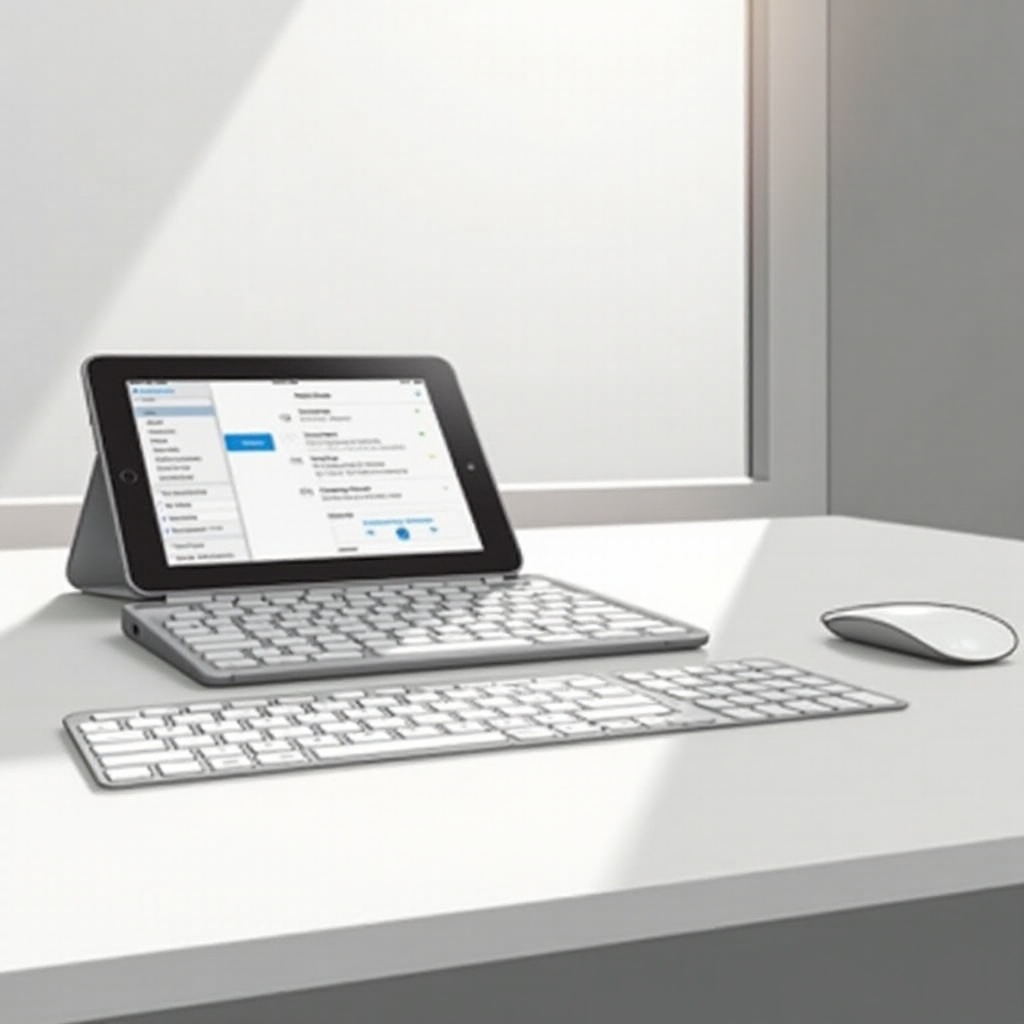
With charged and updated devices, you are ready to connect your Mac keyboard to your iPad. Follow these detailed steps for a successful connection:
- Activate Bluetooth on iPad
- Open the Settings app on your iPad.
-
Tap on ‘Bluetooth’ and toggle the switch to activate it. Your iPad will start looking for available devices.
-
Enable Pairing Mode on Mac Keyboard
- Turn on your Mac keyboard. If it has a pairing button, press it until the light flashes, indicating it’s ready to connect.
-
Most Apple keyboards enter pairing mode when turned on unless already connected to another device.
-
Pairing and Establishing the Connection
- In the iPad’s Bluetooth menu, locate your Mac keyboard under ‘Other Devices.
- Tap the keyboard’s name and follow any on-screen prompts. The pairing should complete quickly, and a ‘Connected’ status will appear.
Troubleshooting Common Connectivity Issues
Sometimes, your keyboard may refuse to connect or might disconnect sporadically. Most issues are minor and can be fixed with a few adjustments.
Bluetooth Connectivity Problems
Physical obstructions, interference from other devices, or software glitches might hinder connectivity. Ensure your devices are within close proximity without obstacles. Try restarting both your iPad and keyboard, as this can resolve most temporary connectivity issues.
Resetting Bluetooth Settings
If problems persist, resetting Bluetooth settings can help. On your iPad, navigate to Bluetooth settings, tap the ‘i’ icon next to your keyboard, and choose ‘Forget this Device.’ Retry the pairing process with fresh settings.
Enhancing Your Keyboard Experience on iPad
Successfully pairing your devices is just the beginning. Customizing your setup can further enhance the usability and enjoyment of your Mac keyboard with your iPad.
Customizing Keyboard Shortcuts
Tailor keyboard shortcuts to suit your frequent tasks. Open Settings > General > Keyboard > Hardware Keyboard on your iPad to create shortcuts, making routine actions quicker and more intuitive.
Utilizing Third-Party Apps for Productivity
Explore third-party apps to increase efficiency and unlock additional features. Apps that offer text expansion, improved editing tools, or advanced shortcuts can significantly boost your iPad’s functionality. Ensure compatibility with your setup before installation.
Conclusion
Connecting your Mac keyboard to your iPad doesn’t have to be a complex endeavor. Following the steps outlined in this guide ensures a seamless connection process, allowing you to enjoy enhanced productivity and comfort. Once connected, consider personalizing your setup with shortcuts and apps to align with your specific needs.
Frequently Asked Questions
Can I use any Mac keyboard with my iPad?
While many Mac keyboards are compatible, they must support Bluetooth and be confirmed compatible with your specific iPad model and iOS version.
Why isn’t my Mac keyboard connecting to my iPad?
Ensure devices are charged, updated, in proximity, and free from interference. Restart both if issues persist and check Bluetooth settings.
How can I improve the battery life of my Mac keyboard while using it with an iPad?
Switch off the keyboard when not in use and adjust settings like disabling backlighting to minimize power usage.